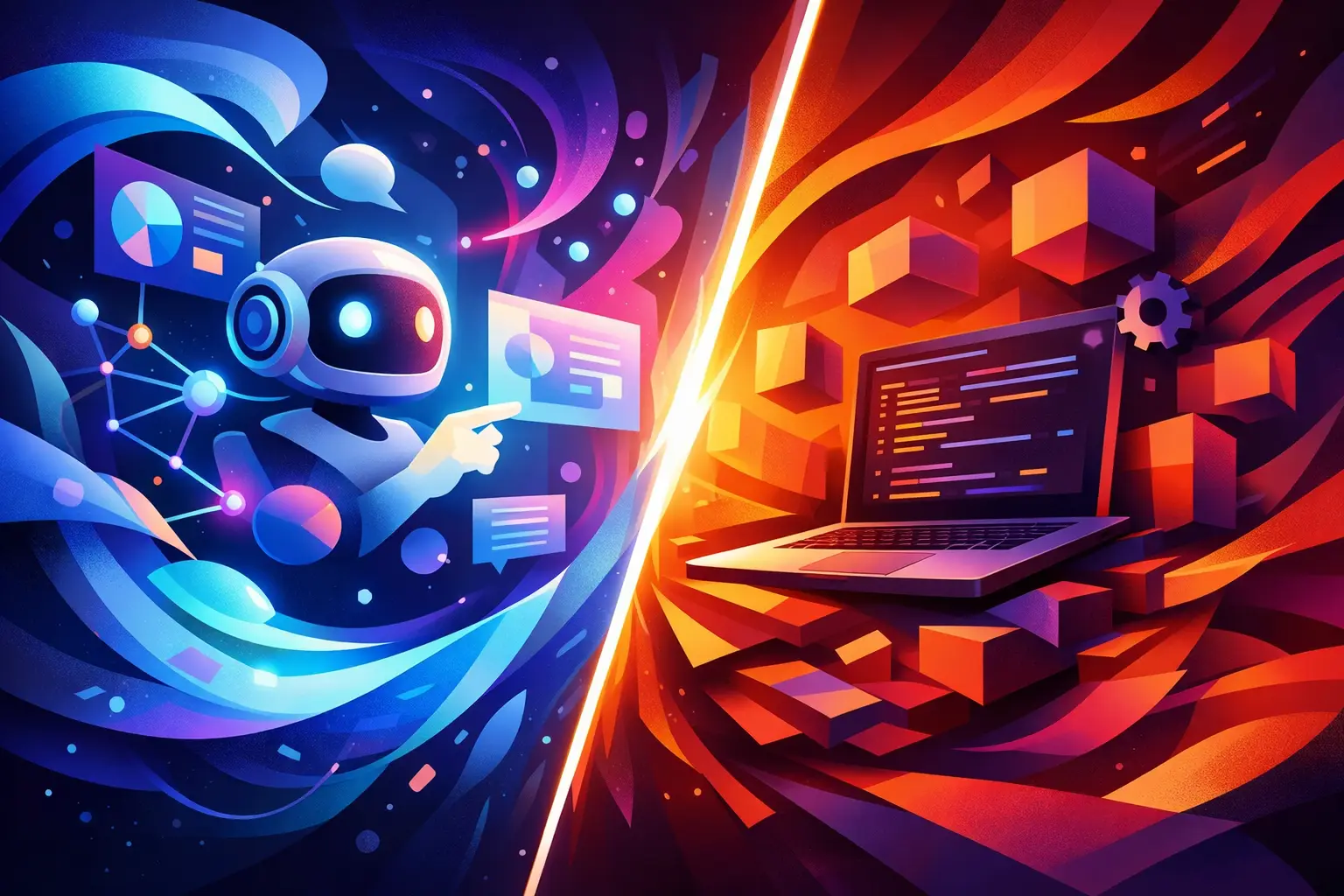
A refactor is running in one terminal. Claude is investigating a failing test in another. A cloud VM is building a release branch, while your local repo needs a quick commit before you lose the thread. The visual agent workspace versus IDE decision becomes real at that moment: are you editing code in one project, or operating several streams of development work at once?
An IDE remains one of the best tools ever made for writing and understanding code. But AI coding agents, remote machines, and long-running terminal work have changed the shape of a developer's desk. The question is not whether an IDE is obsolete. It is whether it is still the right control surface for the work around the code.
An IDE is built around the code editor
The traditional IDE organizes work around a project. You open a repository, inspect its file tree, edit a file, run a debugger, use source control, and perhaps keep an integrated terminal nearby. That model is efficient when your main job is making deliberate changes in a focused codebase.
This is where an IDE is hard to beat. Language servers provide inline diagnostics. Refactoring tools understand symbols and dependencies. Debuggers let you stop execution at a precise line. Test runners, extensions, and code navigation keep the feedback loop close to the file you are changing.
For a developer working on a single feature, a conventional IDE creates useful constraints. The project is in front of you. The active file is clear. The editor is optimized for reading and producing code, not for tracking every process on every machine.
That focus can become a limitation once work splits across agents and environments. An IDE terminal is often just another panel. A remote shell may live in a separate application. Agent conversations end up in browser tabs. Git activity is scattered between a sidebar, command line, and hosting service. The developer becomes the integration layer.
A visual agent workspace is built around active work
A visual agent workspace treats development as a system of live processes rather than a stack of editor tabs. Terminals, repositories, agent sessions, notes, machine metrics, and Git activity are all visible on one persistent canvas. You can place them where they make operational sense, then zoom out to understand the whole job.
That distinction matters when the code is no longer the only thing doing work. An agent might be mapping a monorepo. Another might be fixing a test suite. A deployment may be consuming CPU on a connected machine. A third terminal may be tailing logs while you decide whether to interrupt it. None of these tasks needs to own the center of the screen all the time, but all of them need to remain visible and recoverable.
Instead of asking which tab contains the right state, you see the state. The terminal that launched an agent stays attached to its output. The repository pane shows related activity. A machine pane can expose CPU, RAM, and usage data before a build turns into a mystery. A Git graph can make parallel branch work easier to inspect than a series of disconnected commands.
This is not a replacement for code intelligence. It is a control plane for the work surrounding code intelligence. You may still open an editor to make a precise change. The workspace handles the coordination problem: what is running, where it is running, who or what changed the repo, and what needs your attention next.
Visual agent workspace versus IDE: the practical difference
The simplest distinction is scope. An IDE is optimized for depth inside a codebase. A visual agent workspace is optimized for breadth across active development surfaces.
In an IDE, opening more work usually means opening more tabs, terminal panels, windows, workspaces, or applications. That is manageable for short tasks. It gets expensive when each workstream has its own context, branch, environment, and agent history. The cost is not just screen clutter. It is reloading mental state every time you switch.
In a visual workspace, parallelism is visible by default. You can keep a research agent on the left, a test-fixing agent beside it, and a production log stream below. A remote machine can sit next to the repository it is building. If several terminals need the same command, broadcast input instead of pasting it repeatedly. If you step away, session recovery and notifications make it less likely that a finished or failed job disappears into terminal history.
The trade-off is equally clear. A canvas does not automatically give you the rich semantic editing experience of a mature IDE. If you spend eight hours tracing a type hierarchy, resolving compiler errors, and debugging a local service, the IDE is probably your primary interface. A visual workspace earns its place when coordination becomes the bottleneck.
Where each tool wins
An IDE wins when the work is deeply sequential. You are implementing a feature in one repository, navigating unfamiliar code, stepping through a bug, or relying on language-specific tooling to make safe changes. It is also the better default for developers who prefer a contained environment and rarely operate more than one active terminal or machine.
A visual agent workspace wins when work is concurrent or distributed. That includes running multiple AI coding agents, managing local and cloud environments, monitoring long builds, coordinating changes across repositories, or supervising autonomous sessions that may finish while you are focused elsewhere.
The difference is especially visible in a common AI-assisted workflow. In a conventional setup, you start an agent in a terminal, open another tab for the next task, switch to a browser to inspect a pull request, SSH into a VM, and eventually hunt for the terminal that contains the agent's final response. Each tool is reasonable on its own. Together, they create a coordination tax.
With a visual workspace, those are panes in the same operational view. You can associate an issue with the terminal handling it, keep the relevant Git activity nearby, and monitor the machine doing the work. The goal is not more UI. It is fewer searches for lost context.
Use the editor for code, the canvas for operations
The strongest setup is often not visual agent workspace versus IDE as an either-or choice. It is a division of labor.
Keep your IDE for high-precision coding: symbol navigation, local debugging, source-level review, and language-aware refactors. Use the visual workspace to run and supervise the wider system: agents, shells, repositories, remote devices, builds, logs, and Git movement.
For example, a technical founder might open an IDE to review an agent's proposed patch, while the workspace keeps three related efforts running: a test agent on the local machine, a dependency update on a cloud VM, and a release build on another branch. The founder does not need to remember which terminal belongs to which task. The environment remains spatially organized across the full work session.
This model also improves handoffs. When a teammate asks what is happening, a collection of named panes, visible branches, and live outputs is easier to communicate than a verbal inventory of tabs. When a process fails, its surrounding context is still present. When an agent needs more direction, you can return to the exact session rather than reconstructing the prompt and command history.
49Agents is designed around this operating model: one infinite 2D canvas for agents, terminals, repositories, Git activity, notes, and connected machine resources. It does not ask developers to abandon their preferred editor. It gives the work outside that editor a place to live.
Choose based on your real bottleneck
If your friction comes from writing or debugging code, improve the IDE workflow first. Configure your language tools, test integration, and shortcuts. A canvas will not fix a missing debugger or poor code navigation.
If your friction comes from managing work that is already underway, the answer is different. Count how often you search for a terminal, reconnect to a remote machine, repeat a command across sessions, lose an agent's output, or forget which branch a process touched. Those are coordination problems, and they compound as more agents and machines enter the workflow.
Start with one active project and make the workspace earn its screen area. Put the agent session next to its terminal. Add the repo and the machine it runs on. Then let the layout grow only when your work does. The useful outcome is not a more impressive desktop. It is the ability to look at one screen and know what your development system is doing.